
Lokalize
Lokalize is a translation management addon for Cockpit CMS that simplifies managing language keys and strings across your application. Centralize translations, integrate with AI-powered translation services, and streamline your localization workflow.
- Overview
- Features
- Getting Started
- Create a Project
- Add Translation Keys
- Key Naming Conventions
- Translation Services
- DeepL Integration
- LibreTranslate Integration
- Managing Translations
- Bulk Operations
- Search and Filter
- Using Translations
- In Frontend Applications
- React Example
- Vue Example
- Best Practices
- Project Organization
- Translation Workflow
- Performance
- Troubleshooting
- Missing Translations
- DeepL Not Working
- Import Fails
Overview
As multilingual support becomes essential in today's digital landscape, Lokalize enables developers to effortlessly manage translations and localize content across multiple languages directly within Cockpit's interface.
Features
- Centralized Translation Management: Organize all language strings in one place
- Multiple Projects: Group translations by feature, module, or application
- AI-Powered Translation: Integrate with DeepL or LibreTranslate
- API Access: Fetch translations programmatically
- Import/Export: Bulk import and export translation files
Getting Started
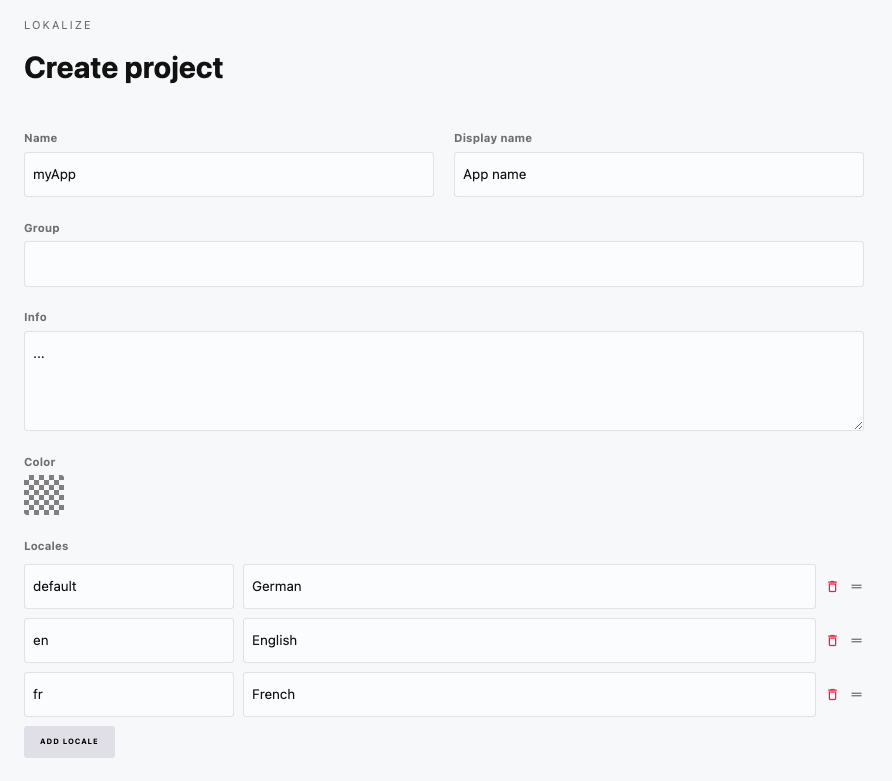
Create a Project
- Navigate to Lokalize in the admin menu
- Click Add Project
- Configure the project:
| Field | Description |
|---|---|
| Name | Unique identifier (used in API) |
| Label | Display name |
| Locales | Target languages for this project |
Add Translation Keys
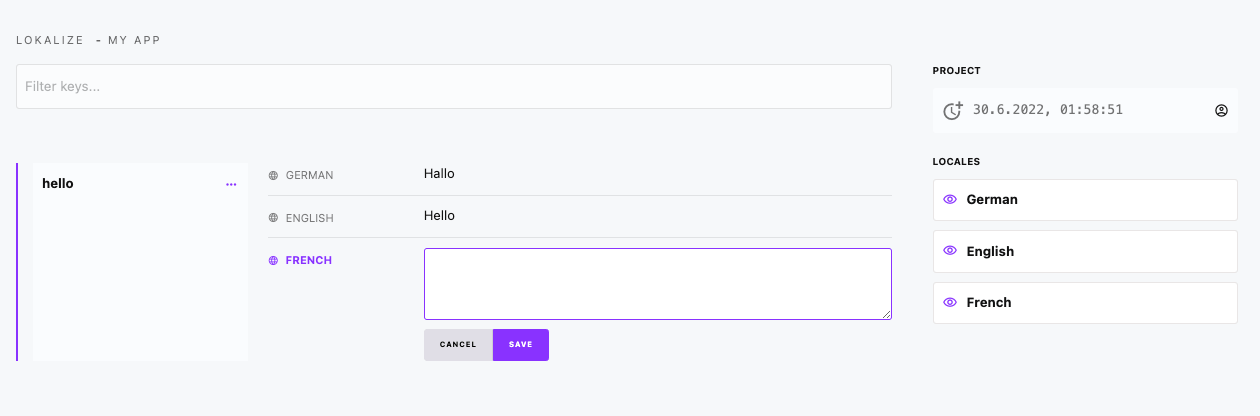
- Open your project
- Click Add Key
- Enter the key name and translations for each locale
Key Naming Conventions
Use consistent naming patterns:
# Hierarchical naming
nav.home
nav.about
nav.contact

# Feature-based naming
auth.login.title
auth.login.button
auth.register.title

# Component-based naming
header.menu.open
header.menu.close
footer.copyright
Translation Services
DeepL Integration
Lokalize integrates with DeepL for high-quality AI translations.
Add to /config/config.php:
<?php

return [
    'lokalize' => [
        'translator' => 'deepl',
        'deepl' => [
            'apiKey' => getenv('DEEPL_API_KEY')
        ]
    ]
];
Set in your .env file:
DEEPL_API_KEY=your-deepl-api-keyUsing DeepL:
- Create or edit a translation key
- Enter the source text in your primary language
- Click the translate button next to empty locale fields
- DeepL automatically fills in translations
LibreTranslate Integration
For self-hosted or open-source translation needs:
<?php

return [
    'lokalize' => [
        'translator' => 'libretranslate',
        'libretranslate' => [
            'server' => 'http://localhost:5000',
            'apiKey' => getenv('LIBRETRANSLATE_KEY') // Optional
        ]
    ]
];
Managing Translations
Bulk Operations
Import translations:
- Go to your project
- Click Import
- Upload a JSON file with translations
Import format:
{
  "nav.home": {
    "en": "Home",
    "de": "Startseite",
    "fr": "Accueil"
  },
  "nav.about": {
    "en": "About",
    "de": "Ãœber uns",
    "fr": "À propos"
  }
}
Export translations:
- Go to your project
- Click Export
- Download JSON file with all keys and translations
Search and Filter
Use the search box to find specific keys:
- Search by key name
- Search by translation content
- Filter by missing translations
Using Translations
In Frontend Applications
// Fetch all translations for a project
const response = await fetch('/api/lokalize/project/website', {
  headers: { 'api-key': 'your-api-key' }
});
const translations = await response.json();

// Use translations
const t = (key, locale = 'en') => {
  return translations[key]?.[locale] || key;
};

console.log(t('nav.home', 'de')); // "Startseite"
React Example
import { createContext, useContext, useState, useEffect } from 'react';

const I18nContext = createContext();

export function I18nProvider({ children, locale = 'en' }) {
  const [translations, setTranslations] = useState({});

  useEffect(() => {
    fetch('/api/lokalize/project/website', {
      headers: { 'api-key': 'your-api-key' }
    })
    .then(res => res.json())
    .then(setTranslations);
  }, []);

  const t = (key) => translations[key]?.[locale] || key;

  return (
    <I18nContext.Provider value={{ t, locale }}>
      {children}
    </I18nContext.Provider>
  );
}

export const useI18n = () => useContext(I18nContext);

// Usage in component
function NavMenu() {
  const { t } = useI18n();
  return (
    <nav>
      <a href="/">{t('nav.home')}</a>
      <a href="/about">{t('nav.about')}</a>
    </nav>
  );
}
Vue Example
// i18n.js
import { ref, computed } from 'vue';

const translations = ref({});
const currentLocale = ref('en');

export async function loadTranslations() {
  const response = await fetch('/api/lokalize/project/website', {
    headers: { 'api-key': 'your-api-key' }
  });
  translations.value = await response.json();
}

export function useI18n() {
  const t = (key) => {
    return translations.value[key]?.[currentLocale.value] || key;
  };

  const setLocale = (locale) => {
    currentLocale.value = locale;
  };

  return { t, setLocale, locale: currentLocale };
}
Best Practices
Project Organization
- One project per application: Keep translations grouped logically
- Use namespaces: Prefix keys with feature/module names
- Keep keys descriptive:
button.submitis clearer thanbtn1
Translation Workflow
- Developers: Add keys with English (or source language) text
- Translators: Use Lokalize interface to add translations
- Review: Check for missing translations before deployment
- Deploy: Fetch updated translations via API
Performance
- Cache translations on the client side
- Fetch translations at build time for static sites
- Use locale-specific endpoints if available
Troubleshooting
Missing Translations
- Check the key exists in the project
- Verify the locale is configured in the project
- Ensure API key has read permissions
DeepL Not Working
- Verify API key is correct
- Check your DeepL account quota
- Ensure source language is supported
Import Fails
- Validate JSON format
- Check key names don't contain special characters
- Ensure locales match project configuration